 LyricFX
Automatic MP3 transcription
Generate a timed lyric draft on your computer. Beta 8 bundles an English recognition model and a multilingual fallback.
Windows beta 8
Open an MP3, generate timed lyrics locally, shape the look, and export an animated lyric video.
Features
Generate a timed lyric draft on your computer. Beta 8 bundles an English recognition model and a multilingual fallback.
Correct words and retime the cues that need attention. Preview the changes against your track.
Bring in lyrics or captions with existing timestamps and use them as the basis for your scenes.
Choose a preset, change the composition or motion, and add artwork to individual scenes.
Queue multiple tracks for processing and follow each job from the batch panel.
Restore a recent autosave and reconnect the source MP3 if it has moved.
Render locally in Full HD or 4K and choose the frame rate and quality for your project.
Gallery
Rendered with LyricFX Studio using original text, artwork, and an original instrumental loop.
Quick start
Setup.exe file and follow the installer prompts.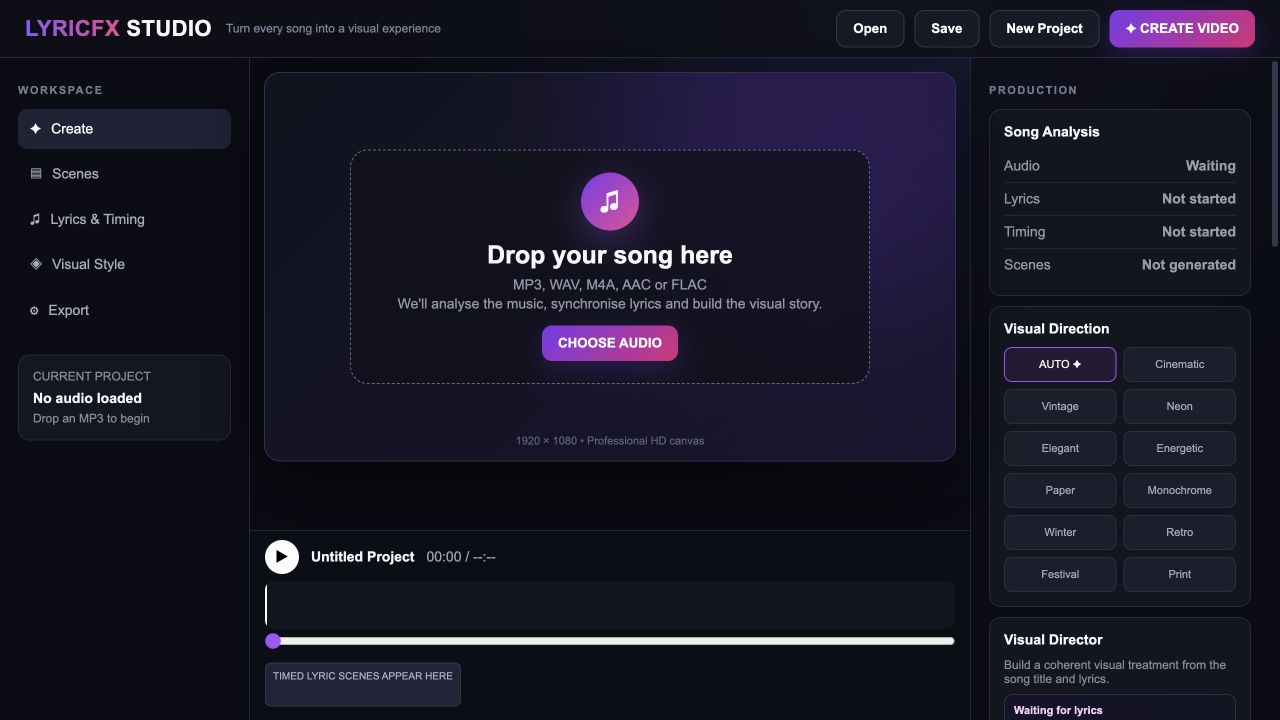
Help
Open a topic for the steps.
Find the line in the cue list and edit its text. Edit its start or end time in seconds, or select Tap timing to adjust it against playback. Replay the passage and save the project once it lines up.
While the local progress indicator is visible, select Cancel vocal analysis. Wait for analysis to stop before starting another run or choosing a different track.
Load the matching MP3, use the import control below the lyrics field, and select your .lrc or .srt file. Choose Smart Sync Lyrics to apply the imported timing, then preview it against the audio.
Choose Restore autosave when it appears beside Open. Review the recovered cues and scenes, then save the project to a file.
Open the saved project. If the audio is unavailable, use Change Audio and select the original MP3 at its current location. You can also return the MP3 to its previous location and reopen the project. Check playback and cue alignment, then save the project.
Confirm the MP3 plays and the destination is writable with enough free space. If a 4K render fails, try a short project at 1080p and keep the error text for troubleshooting.
Check the connection for online artwork. For photo search, try a shorter or broader query. For cloud artwork, check your OpenAI API key, image model access, and quota. To keep working offline, choose an image with Add / Replace Scene Artwork.
After PayPal confirms your payment, select Download your installer on the checkout page.
Apple silicon · DMG
£5.99
Pay with PayPalWindows x64 · Setup.exe
£5.99
Pay with PayPalPrivacy and content rights
Transcription and video export run on your computer.
Wikimedia Commons receives the search phrase and request metadata such as your IP address and the app’s user agent. Wikimedia’s image host receives the image URL request when the app fetches a result. The search uses the text you enter.
OpenAI receives the artwork prompt, image generation settings, and the API key you supply for authentication. The request contains text and settings. Keep private lyrics and other sensitive information out of the prompt. Both optional artwork services require an internet connection.
Checkout opens on our DJ Bulk Search checkout host. PayPal handles your payment. The checkout verifies the order, payment amount, and payment status before showing your download link.
Before sharing an export, confirm you have permission to publish the recording, composition, lyrics, and artwork included in it. Check the terms and any required credits for third-party images.